How Drafts Work
Every email in TextForge follows a clear path: your AI agent creates a draft, you review it, and only then does it get sent. Nothing leaves your inbox without your explicit approval.
The Email Lifecycle
Here's what happens from start to finish:
- Your AI creates a draft — Using the TextForge API or MCP tools, your AI agent composes an email and submits it for your review.
- You get notified — TextForge alerts you that a new draft is ready. You'll see it on your dashboard, and optionally via webhook notifications to Slack or other tools.
- You review the draft — Read through the email, check the recipients, subject, and body. Make sure it says what you want it to say.
- You take action — Approve it to send, edit it first, schedule it for later, or reject it with feedback.
- TextForge handles the rest — Approved emails are sent through your connected Gmail account. Your AI gets notified of the outcome.
Reviewing a Draft
When you open a draft, you'll see everything your AI composed:
- To / CC / BCC — Who the email will be sent to
- Subject line — The email subject
- Body — The full email content, formatted and ready to send
- Your signature — Automatically appended from your signature settings
Take your time. The draft stays in your queue until you act on it or it expires.
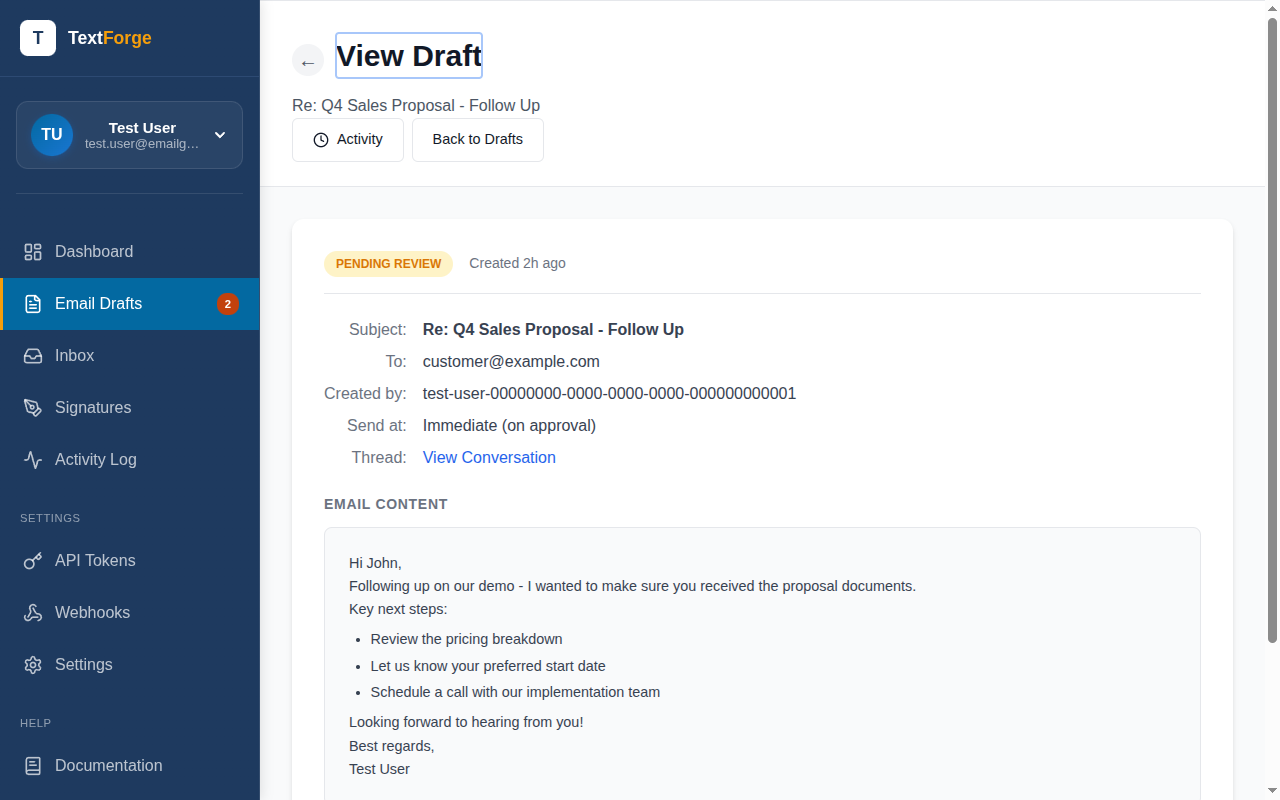
Editing Before Sending
Not quite right? You can edit any part of the draft before approving it:
- Fix typos or awkward phrasing
- Adjust the tone
- Add or remove recipients
- Change the subject line
- Rewrite sections entirely
Your edits are saved immediately. When you're happy with the result, approve it to send.
Approving a Draft
Click Approve to send the email. You have two options:
- Send now — The email goes out immediately through your Gmail account.
- Schedule for later — Pick a date and time. The email will be sent automatically at that time. See Scheduled Emails for details.
Once approved, the email is sent from your actual Gmail address. Recipients see it as a normal email from you — because it is.
Rejecting a Draft
If the draft isn't right and you'd rather have your AI try again, click Reject. You can include feedback explaining what to change:
- "Too formal — use a friendlier tone"
- "Wrong recipient — this should go to the sales team"
- "Missing the project timeline we discussed"
Your AI agent receives this feedback through the API and can use it to create an improved draft. This creates a feedback loop that helps your AI learn your preferences over time.
Draft Expiration
Drafts don't sit in your queue forever. If you don't take action within 24 hours, the draft expires automatically. This keeps your queue clean and ensures stale emails don't accidentally get sent days later. Scheduled drafts expire at the scheduled send time if not approved.
When a draft expires:
- It's marked as expired and removed from your active queue
- Your AI agent is notified via the
draft.expiredwebhook event - The draft content is still visible in your history for reference
- Your AI can create a new, updated draft if the email is still needed