Quickstart Guide
Get up and running with TextForge in under 5 minutes. This guide walks you through creating an API token and connecting your AI agent.
1. Sign In with Google
TextForge uses Google OAuth for authentication. Click the Sign In button and authorize TextForge to access your Gmail account. This allows TextForge to send emails on your behalf (after you approve them).
Note
TextForge only sends emails when you explicitly approve them. AI agents can draft emails, but nothing sends without your approval.
2. Connect Your AI Agent
The fastest way to connect depends on which tool you use.
OAuth (recommended for Claude Code, Claude Desktop, OpenCode) — Run a single command and approve access in your browser. No token to copy, no config file to edit:
claude mcp add textforge --transport http https://textforge.net/mcp
If you don't have a TextForge account yet, the OAuth flow walks you through signup automatically.
API key (all other tools) — Go to Settings → API Tokens and click Create Token. Give your token a descriptive name (e.g., "Cursor" or "Sales Assistant"), then add it to your tool's MCP configuration. See the MCP Setup Guide for tool-specific instructions.
Warning
If you create an API token, copy it immediately! For security, we only show the full token once. If you lose it, you'll need to create a new one.
3. Draft Your First Email
Ask your AI agent to draft an email. For example:
"Draft an email to [email protected] introducing our new product launch."
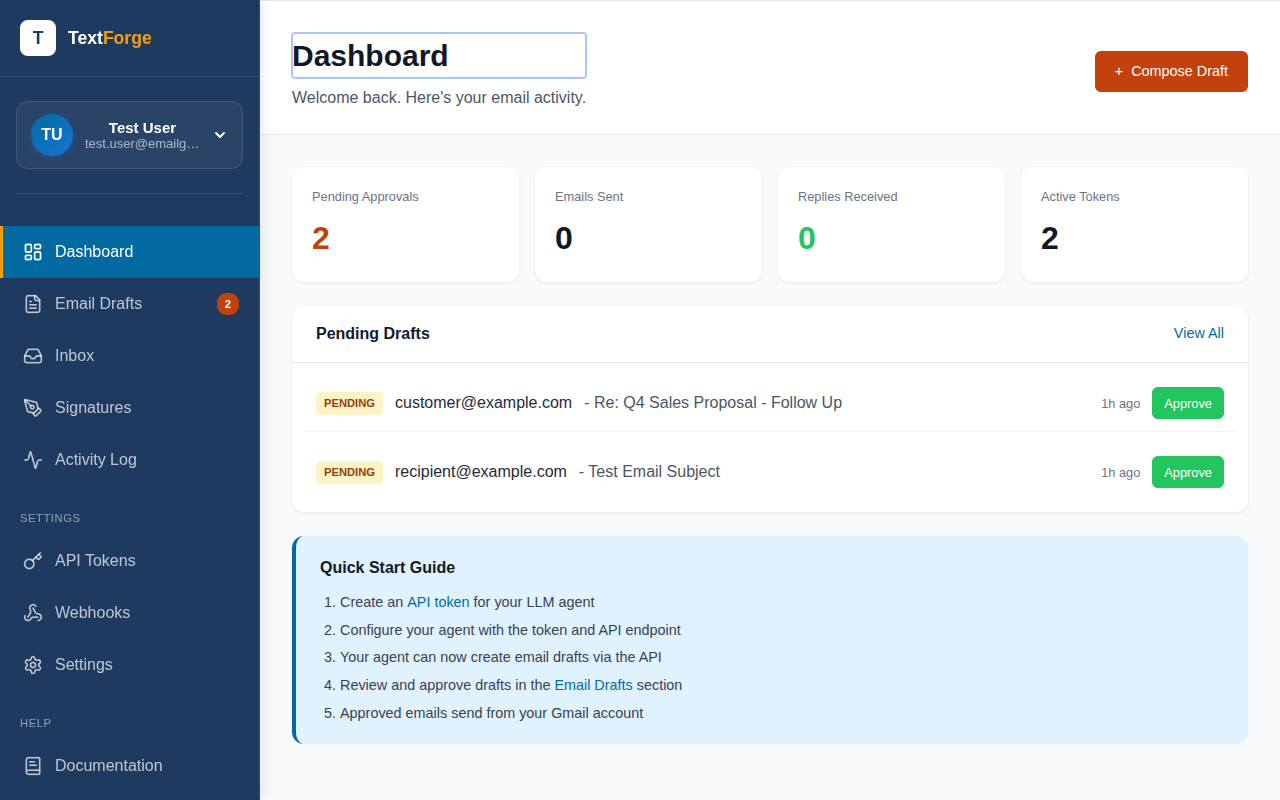
The AI will use the TextForge MCP tools to create a draft. You'll see the draft appear in your TextForge dashboard, ready for review.
4. Review and Approve
Open the TextForge dashboard to review the draft. You can:
- Edit the subject or body
- Approve to send immediately
- Schedule for later
- Reject with feedback for the AI
Next Steps
Ready to integrate TextForge with your AI tools? Check out the MCP Setup Guide for tool-specific configuration instructions, or learn more about how drafts work.