Scheduled Emails
Sometimes you want to approve an email now but send it later — first thing Monday morning, during business hours in another timezone, or after a specific event. TextForge lets you schedule approved emails to send at the exact time you choose.
Scheduling a Draft
There are two ways to schedule an email:
When Your AI Creates the Draft
Your AI agent can suggest a send time when creating a draft through the API. If a scheduled time is included, you'll see it when reviewing the draft. You can accept the suggested time, change it, or remove it and send immediately.
When You Approve the Draft
When you approve a draft, you can choose:
- Send now — The email goes out immediately
- Schedule for later — Pick a date and time, then approve
The email won't send until the scheduled time, even though it's already approved.
How Scheduling Works with Approval
Scheduling and approval are separate steps that work together:
- A draft is created (by your AI or manually)
- You set a scheduled send time (optional)
- You approve the draft
- TextForge holds the email until the scheduled time
- At the scheduled time, the email is sent automatically
The key point: scheduling doesn't bypass approval. You still review and approve the email. Scheduling just controls when the approved email gets sent.
Viewing Scheduled Emails
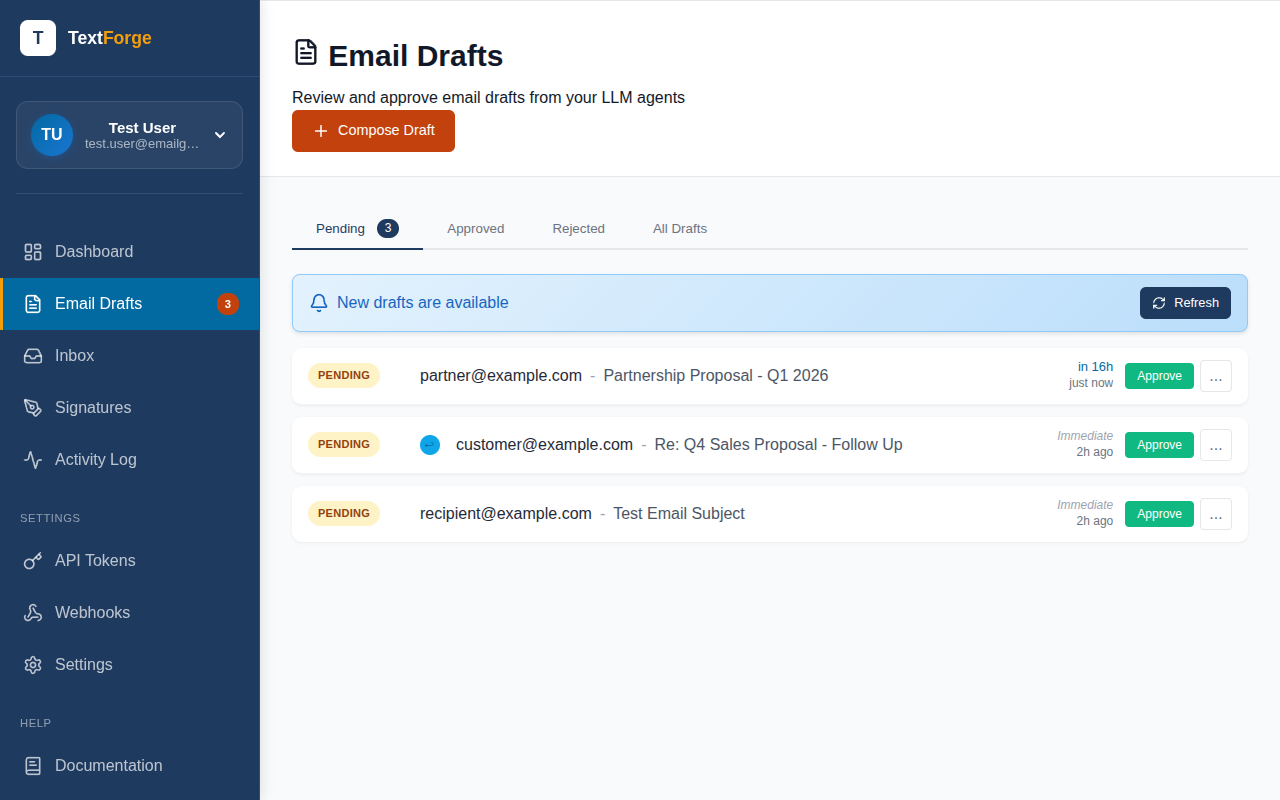
Scheduled emails appear on your dashboard with the scheduled send time. You can see at a glance:
- Which emails are queued to send
- When each one will go out
- Who it's going to and what the subject is
Rescheduling
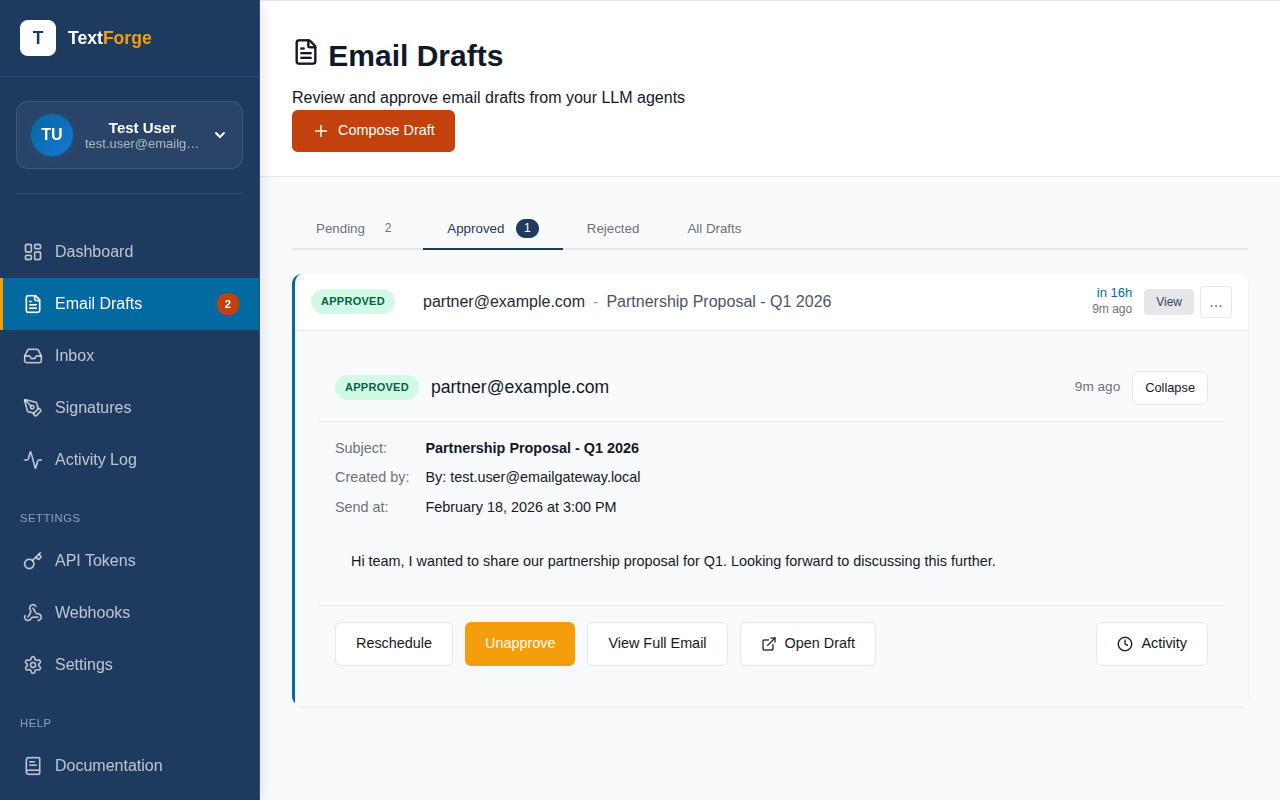
Changed your mind about the timing? You can reschedule an approved email anytime before it sends:
- Open the scheduled email from your dashboard
- Click Reschedule
- Pick a new date and time
- Confirm the change
The email stays approved — only the send time changes.
Canceling a Scheduled Email
If you decide not to send a scheduled email at all, you can unapprove it. This pulls the email back to your review queue:
- Open the scheduled email
- Click Unapprove
- Optionally add a reason (helpful if your AI agent is tracking status)
The draft goes back to pending status. You can edit it, approve it again with a different schedule, or reject it entirely.
Timezone Handling
Scheduled times are displayed in your local timezone. The email sends at the exact time you choose.
Notifications for Scheduled Emails
When a scheduled email is approved, your webhook notifications include the scheduled send time. The draft.approved event tells you whether the email will send immediately or at a specific time.
When the email actually sends at the scheduled time, you receive the normal email.sent event — just like any other sent email.