API Tokens & Permissions
API tokens let your AI agents connect to TextForge. Each token controls exactly what an agent can do — read your inbox, create drafts, send emails, and more. Create separate tokens for different agents so you can manage and revoke access independently.
Tip
Using Claude Code, Claude Desktop, or OpenCode? These tools support OAuth and create tokens automatically — just run claude mcp add textforge --transport http https://textforge.net/mcp and approve access in your browser. Manual tokens are for tools that don't support OAuth yet, or when you need custom permission scopes. See the MCP Setup Guide for details.
Creating a Token
- Go to Settings → API Tokens
- Click Create Token
- Give the token a descriptive name (e.g., "Claude Code", "Sales Assistant", "Support Bot")
- Select the permissions this token should have
- Click Create
Warning
Copy your token immediately. For security, TextForge only shows the full token once. If you lose it, you'll need to create a new one.
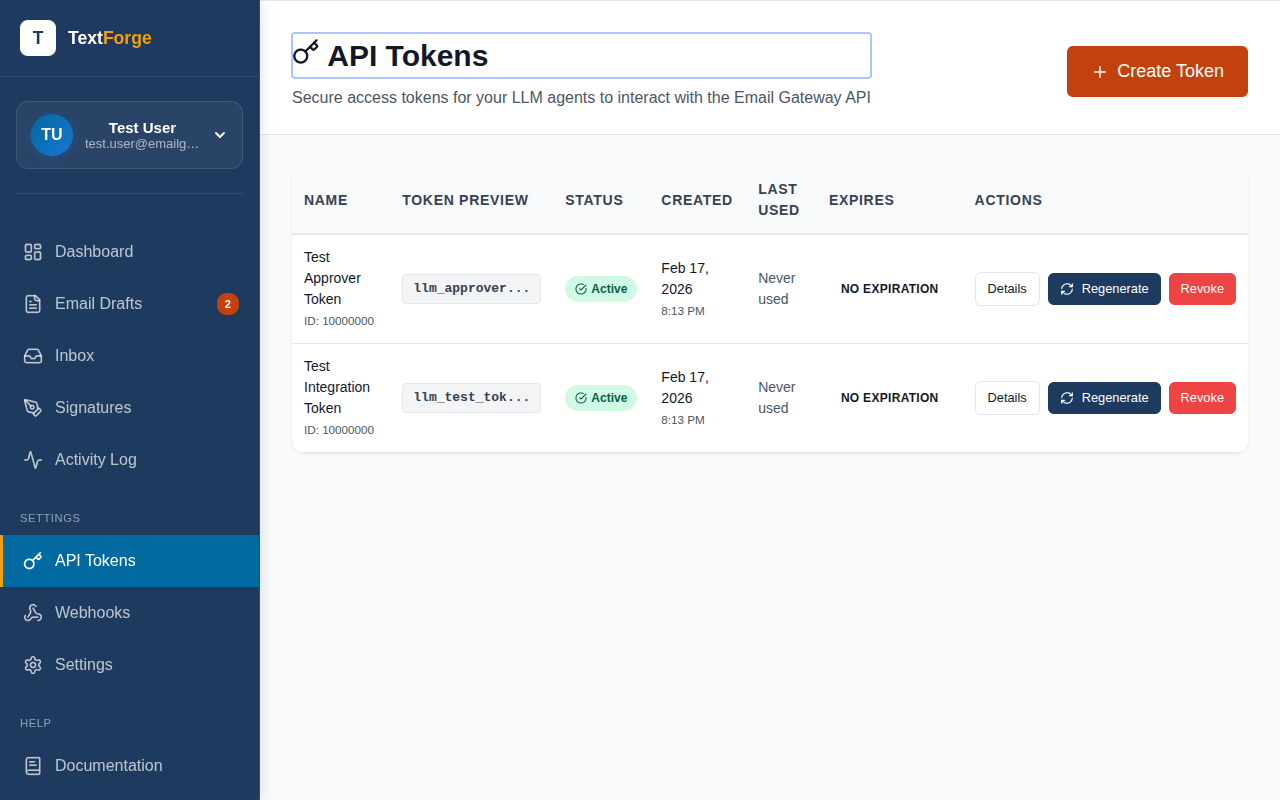
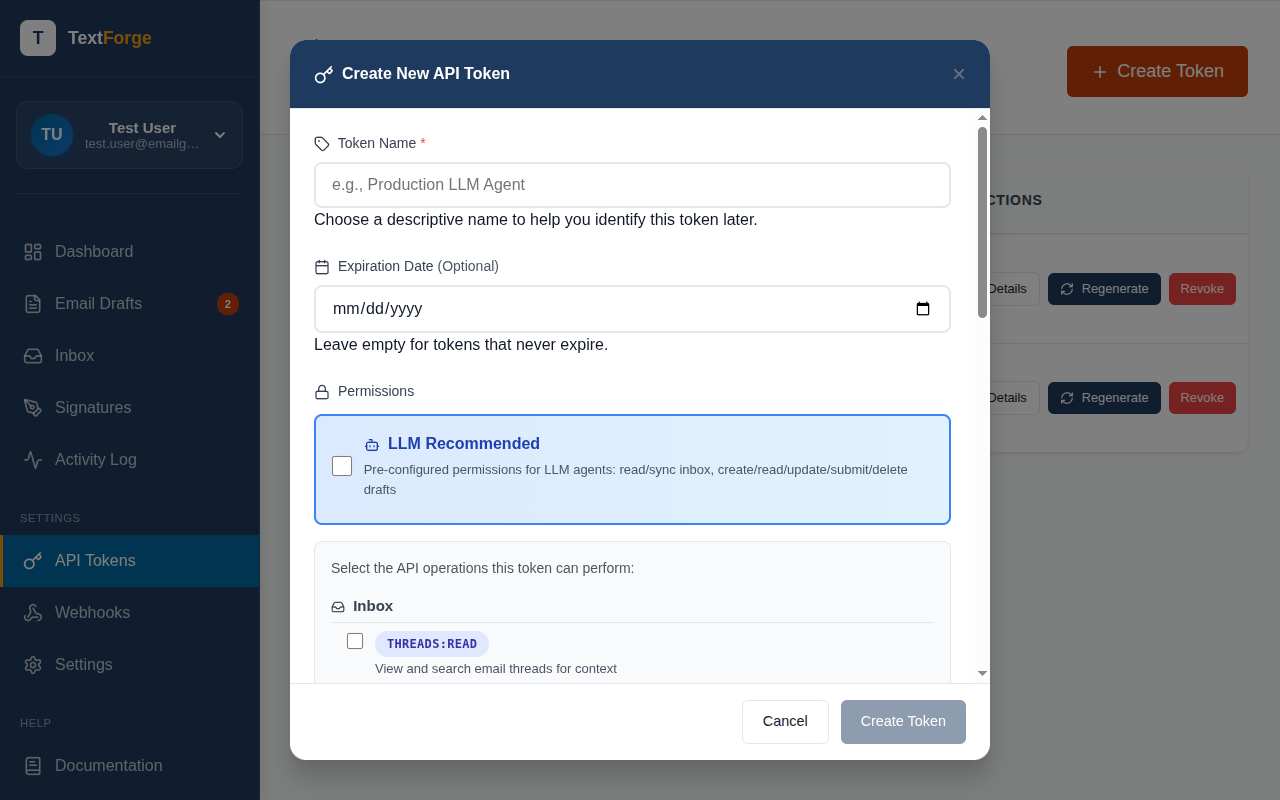
Permission Scopes
Each token can be granted specific permissions across 5 groups: Drafts, Threads, Signatures, Tokens, and Account. This lets you follow the principle of least privilege — give each agent only the access it needs. For the complete list of all 17 permissions and 4 preset scopes, see the Token Permissions Reference.
Common Token Configurations
AI drafting agent — For an AI that creates drafts for your review:
drafts:create,drafts:read,threads:read
Full MCP agent — For a trusted AI agent using all MCP tools:
drafts:create,drafts:read,drafts:update,drafts:submit,threads:read,threads:sync
Read-only monitoring — For dashboards or analytics:
drafts:read,threads:read
Using Your Token
Include the token in the Authorization header of every API or MCP request:
Authorization: Bearer your_api_token_here
For MCP connections, your AI tool handles this automatically once configured. See the MCP Setup Guide for tool-specific instructions.
Rotating a Token
If a token may have been exposed, create a new one and delete the old one:
- Go to Settings → API Tokens
- Create a new token with the same permissions
- Update your AI agent's configuration with the new token
- Delete the old token
There's no downtime — both tokens work until you delete the old one.
Revoking Access
To immediately cut off an agent's access:
- Go to Settings → API Tokens
- Find the token and click Revoke
- Confirm the revocation
The token stops working immediately. Any in-flight requests from that agent will fail with a 401 Unauthorized error.
Security Best Practices
- One token per agent — Don't share tokens between different AI tools. If one is compromised, you only need to rotate that one.
- Least privilege — Only grant the permissions each agent actually needs.
- Environment variables — Store tokens in environment variables, not in code or config files that might be committed to version control.
- Regular rotation — Periodically create new tokens and retire old ones, even if you don't suspect a breach.
- Monitor usage — Check your token list regularly and revoke any tokens you no longer use.
See Also
For a complete reference of all 17 permissions and the 4 preset scopes, see Token Permissions Reference.